


NextGEN Gallery / Imagely: How to Restore the Legacy Album Management Screen
I wanted to move a gallery to a specific position in an album, but couldn’t figure out how. While trying different things, the old album management screen appeared out of nowhere — and I was miraculously able to do exactly what I needed. But I had no idea how it happened, and couldn’t reproduce it. I started to wonder if I had dreamed the whole thing.
It was quite a while later that I finally learned the method.
If you want to move galleries to any position within an album, give this a try.
The Problem: Galleries Cannot Be Moved to an Arbitrary Position Within an Album
Since Imagely 4.0, the album management screen was rebuilt as a SPA (Single Page Application). Galleries are now split across multiple pages, and it is no longer possible to move a gallery from one page to another within the album. In the legacy interface, you could freely drag and drop galleries into any order — making this a significant step backwards in usability.
The Solution: Use the Legacy Album Management Page
Access the following URL to open a hidden settings page that does not appear in the regular admin menu:
https://your-site.com/wp-admin/admin.php?page=imagely-settings&tab=hidden
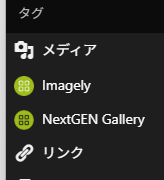
On this page, you will find a “Show legacy admin pages” toggle. Turn it on and refresh the page — a “NextGEN Gallery” menu will appear in the left sidebar alongside the existing Imagely menu. From there, you can access the legacy album management screen and freely drag and drop galleries into any position within an album.
Notes
- Tested on: NextGEN Gallery 4.2.2 / WordPress 7.0
- The
tab=hiddenpage is undocumented and not accessible from the regular settings menu. It may be removed in a future version of the plugin. - This method has been shared by Imagely support staff in some WordPress.org support threads.


日本語版はこちら:
コメント